Builder tutorial
How to make a digital planner: six stops, one planner.
The studio runs entirely in your browser: change a setting, watch the preview, download a finished PDF. Here is the whole ride, with real screenshots, in the order the page flows. Open it beside this guide and build along.
Step 1
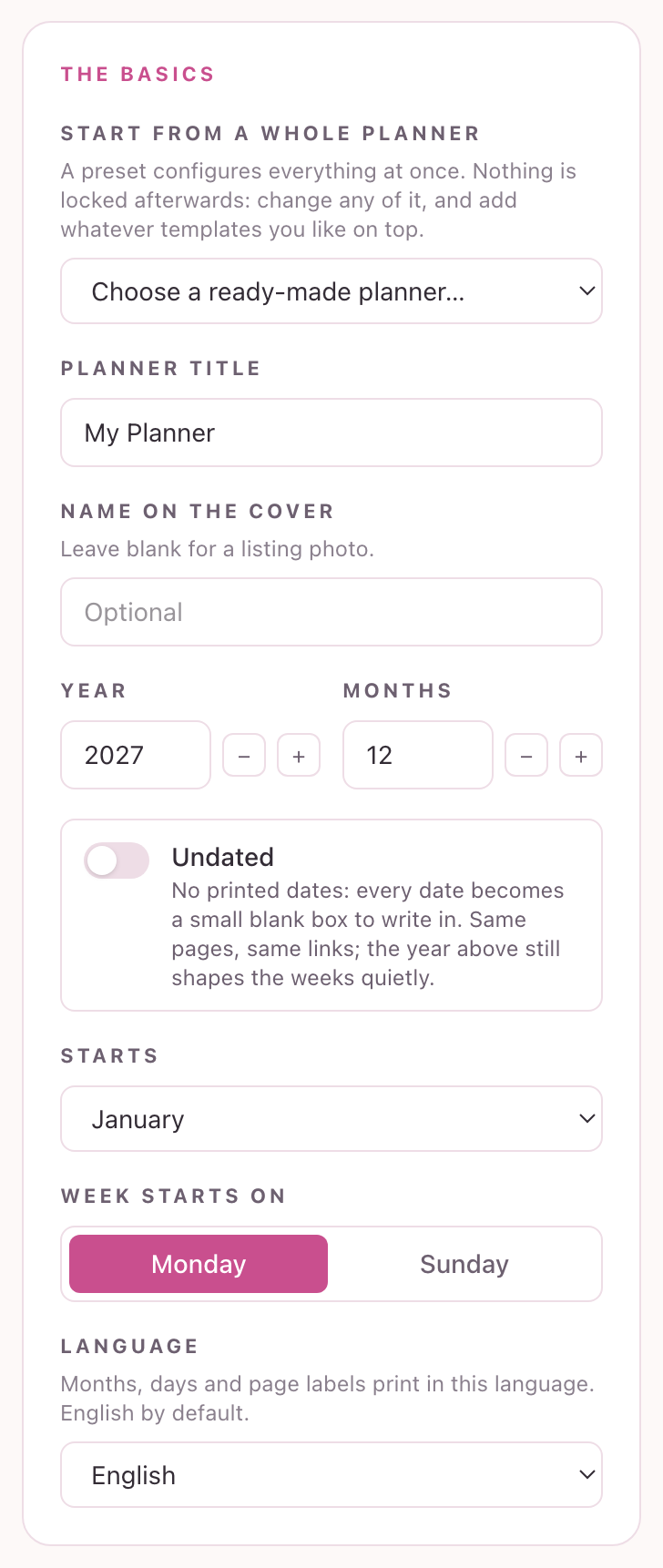
Start from a whole planner
Pick a ready-made planner from the first dropdown and everything below is set at once: pages, templates, layouts. Nothing locks. Then make the basics yours: the title, the year, how many months, Monday or Sunday weeks, and the language it prints in. Undated turns every date into a small blank box to write in.
one dropdown does the heavy lifting
Step 2
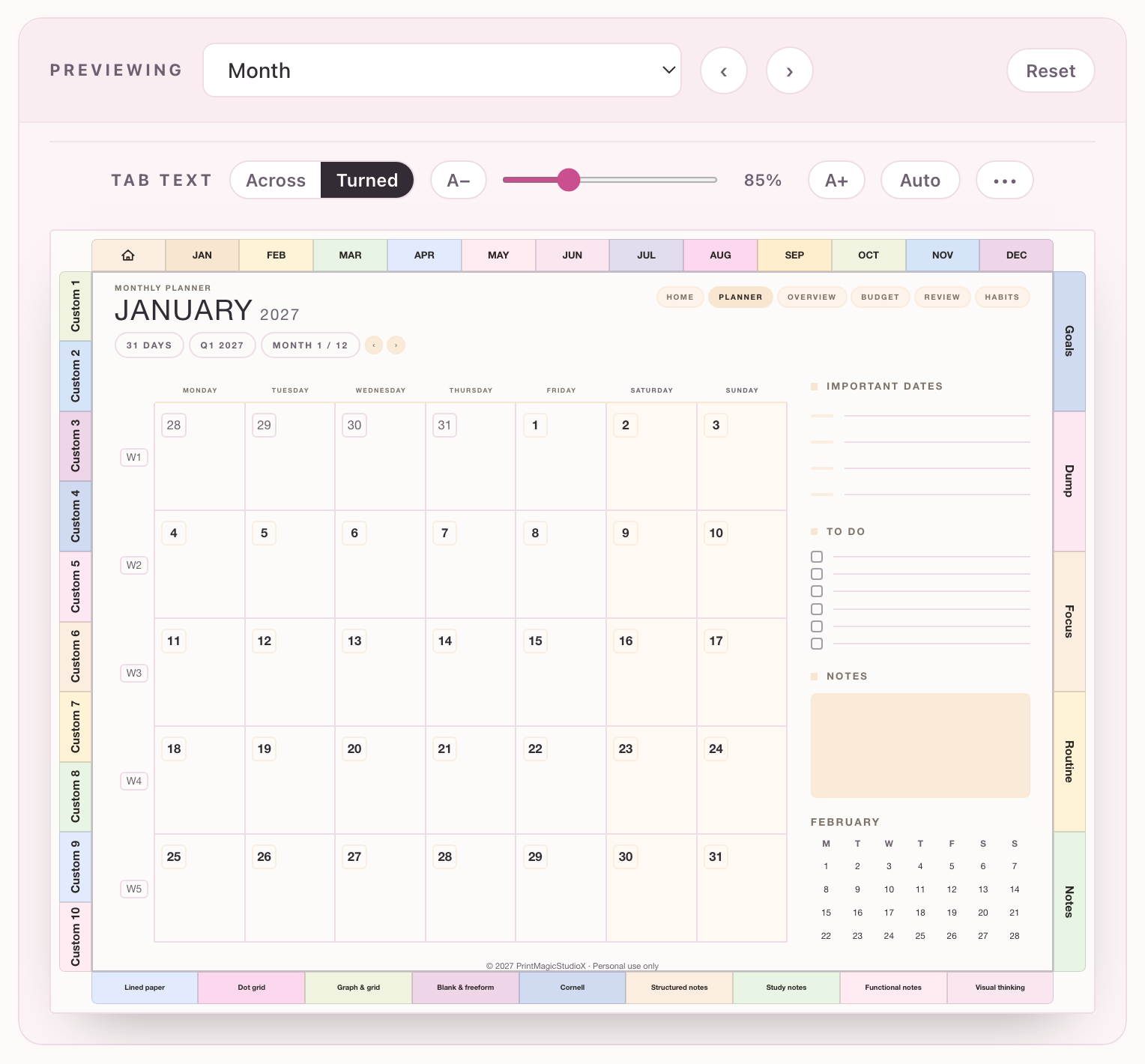
Watch the live preview
The right panel is your planner, live. The Previewing menu walks every page in the file, the arrows step through them, and the tabs on the little planner actually work: tap a month or a template tab and the preview goes there, exactly like the finished PDF will. The TAB TEXT bar above it sizes the tab lettering, and Auto fits every label to its own tab.
what you see is what prints
Step 3
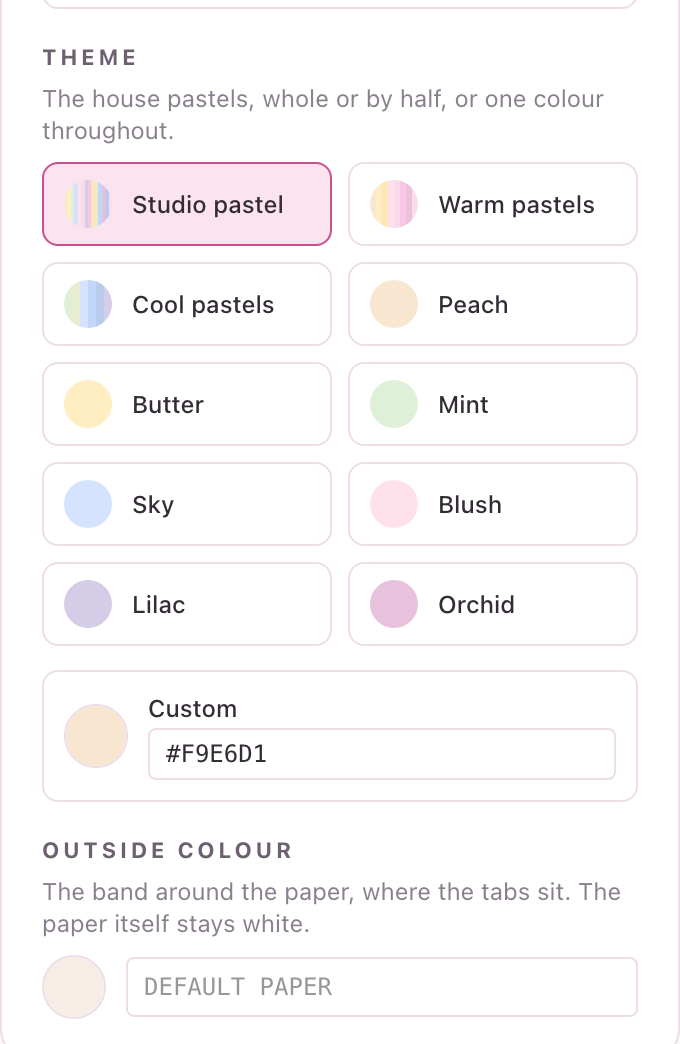
Pick a size and a colour story
Choose the paper for the device you plan on, from tablet landscape to reMarkable and print sizes. Then the theme: the house pastels, one colour throughout, or your own custom shade. The outside colour paints the band the tabs sit on while the paper itself stays white.
pastels, or your brand's own colour
Step 4
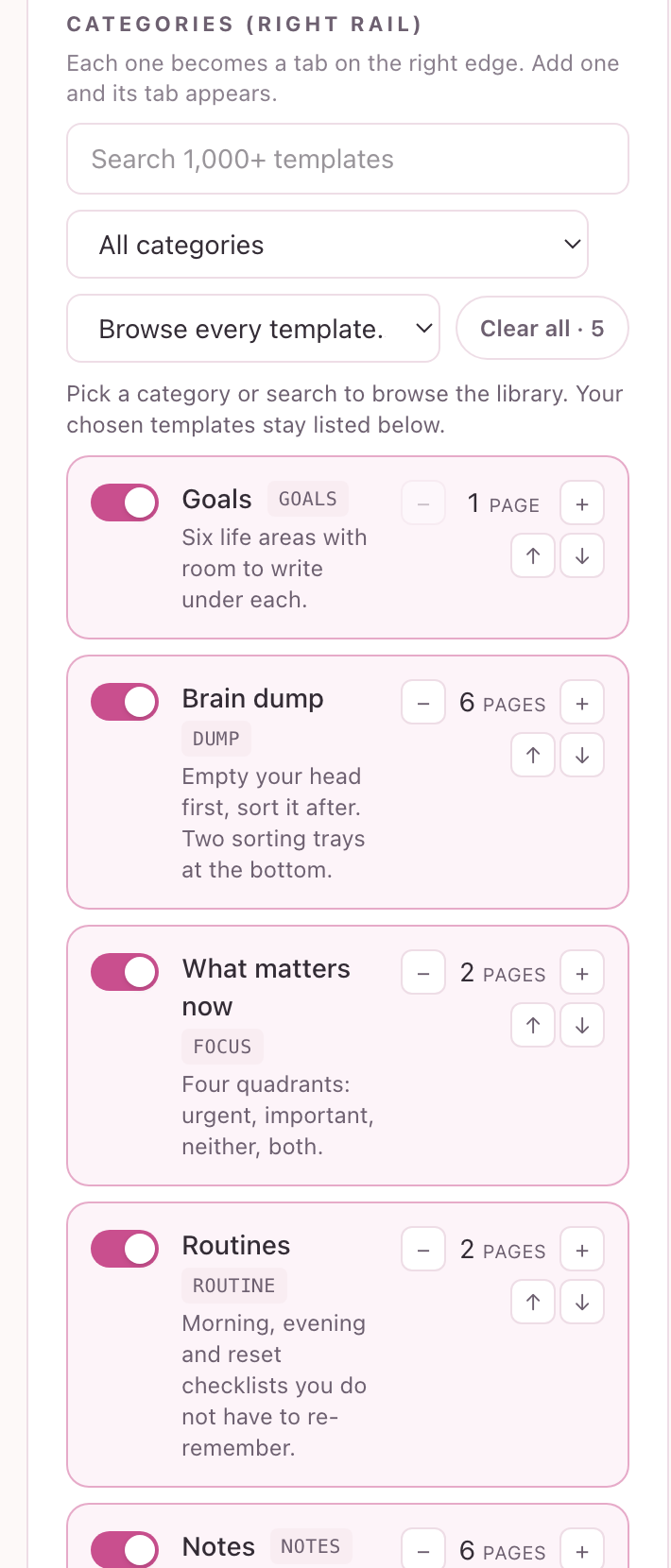
Add templates and papers
Advanced mode opens the library: search over a thousand templates, or browse by category, and every one you switch on becomes a tab with its own pages. Note papers ride the bottom rail, and ten custom tabs are ready for sections you name yourself, each carrying whichever paper you choose.
every toggle becomes a tab
Step 5
Tune the details
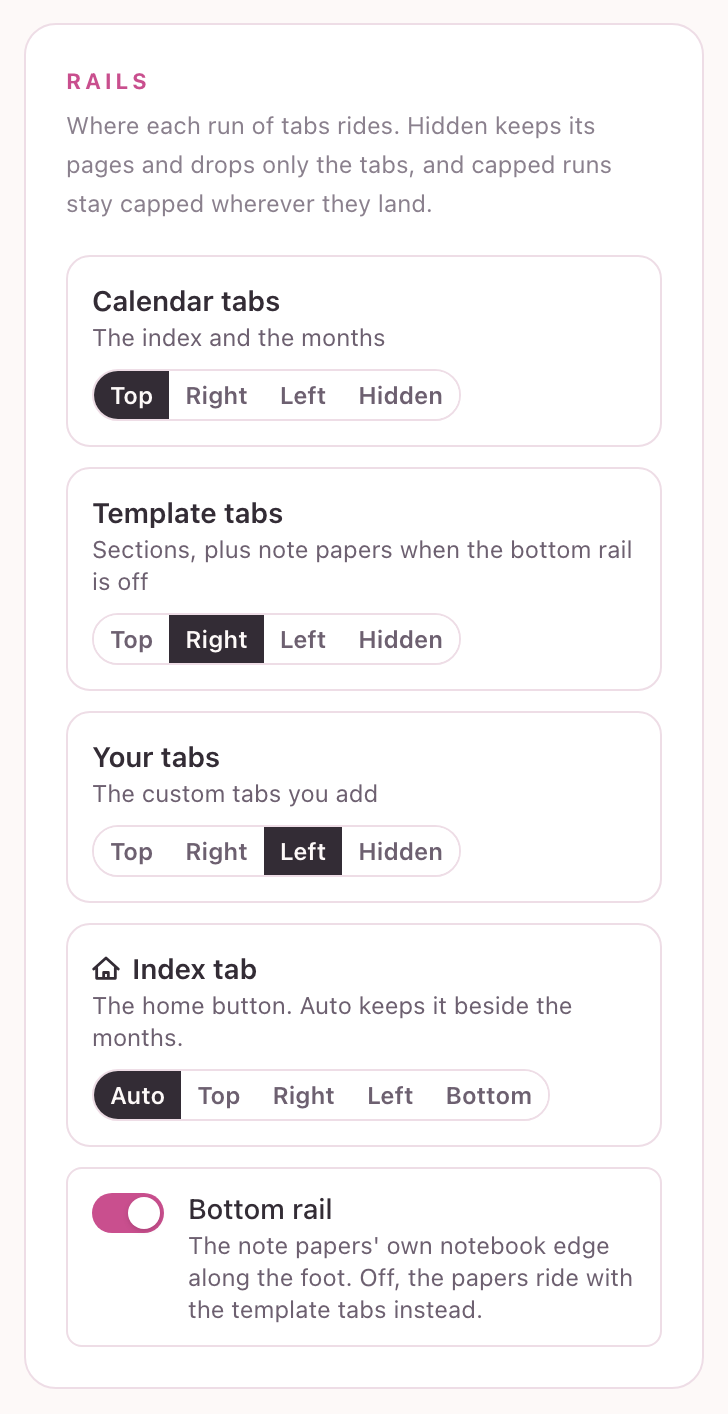
The deep knobs live in Advanced too. Text & fonts restyles the titles, labels and tab lettering. The Rails card moves each run of tabs to any edge, hides them with their pages kept, and pins the Index anywhere first or last. Layouts swap whole month, week and day designs in one tap.
everything is a choice, nothing is locked
Step 6
Try the sample, then download
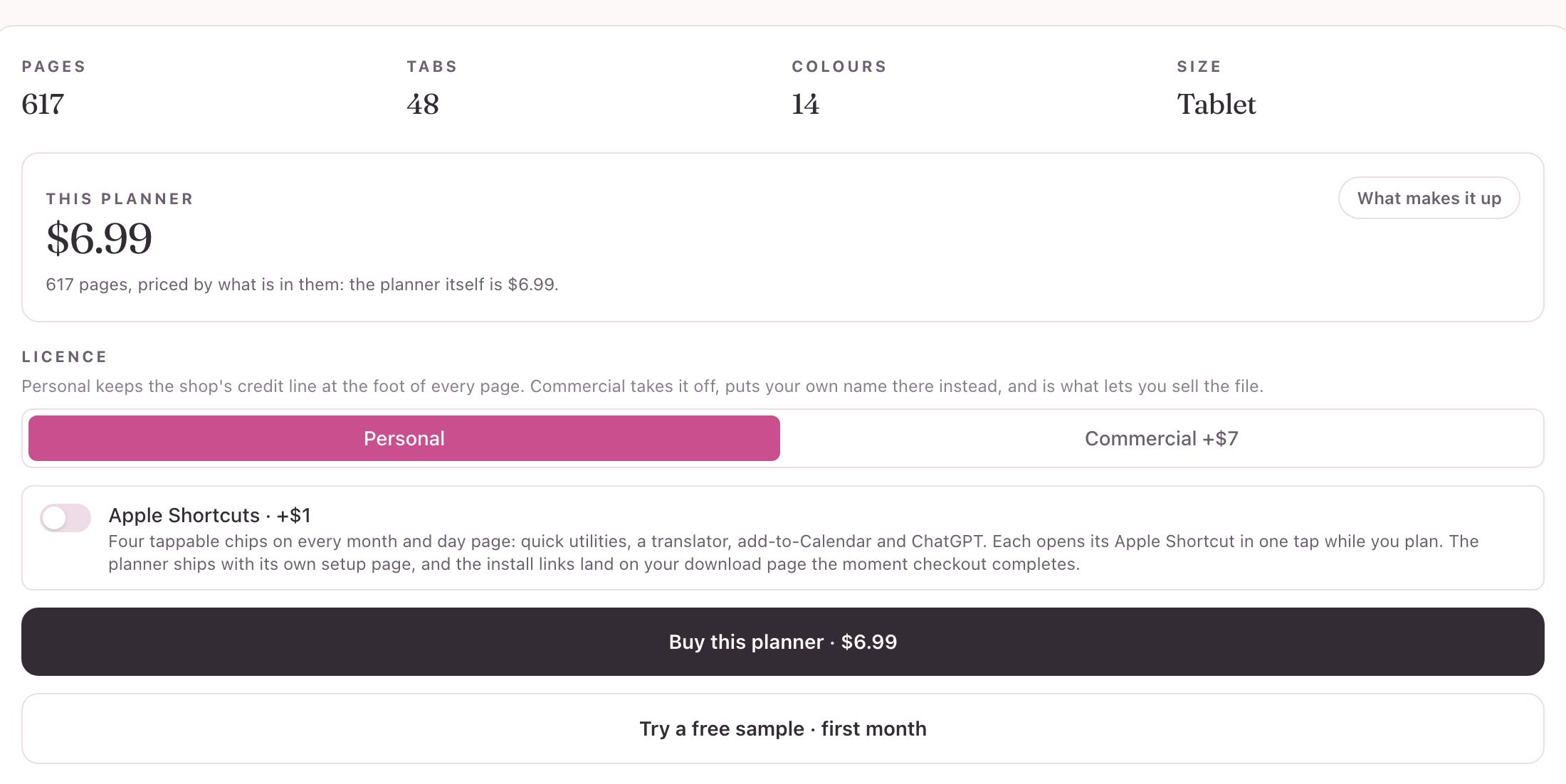
The price card totals the planner by what is in it, and the free sample builds the whole file with a watermark so you can feel it in your own app first. Buy once and the full PDF builds right in your browser: no account, no upload, and the file is yours to keep.
try before you buy, always
that is the whole studio. go play!