Planner guide
How to use your digital planner in GoodNotes
Your planner is one hyperlinked PDF. Put it in GoodNotes, or any app you like to write in, and every tab, date and button jumps where it says. Five quiet minutes of setup, then it is just your planner.
no accounts, no apps of ours. just your PDF.
The one tip that matters
Links jump in Read Only mode.
In GoodNotes, tap the page icon with the little eye in the navigation bar to switch to Read Only mode. Now every tab and date is a button. Tap the pen icon when you want to write again.
Even quicker: stay in editing mode and keep writing with your Apple Pencil, and tap the links with your finger. GoodNotes lets fingers follow links while the pencil writes.
write with the pencil, jump with the finger
Get the file onto your device
Your planner downloads as one PDF from the page you bought it on. On an iPad the easiest route is to buy and download right there in Safari, and the file lands in the Files app. From a computer, AirDrop it across, or drop it into iCloud Drive and open Files on the iPad.
one file, everything inside
Import it into GoodNotes, or any annotation app
In Files, tap the PDF, tap the Share icon, and choose Open in GoodNotes, then Import as a new document. Or start from GoodNotes itself: tap the + tile, choose Import, and pick the planner. Either way it opens as its own notebook, cover first. Using another app? Its card further down has the import steps.
open in GoodNotes, done
Find your way around
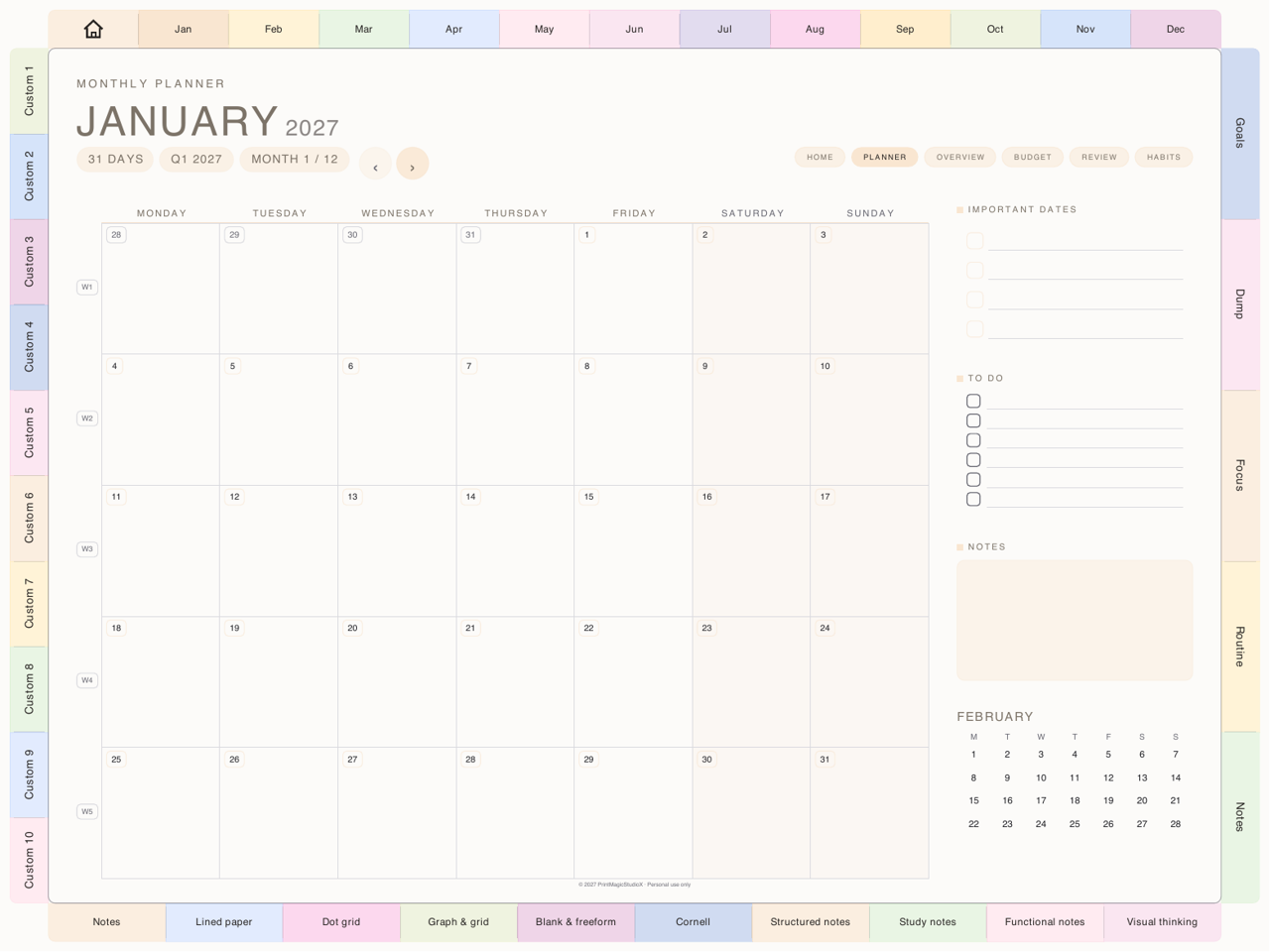
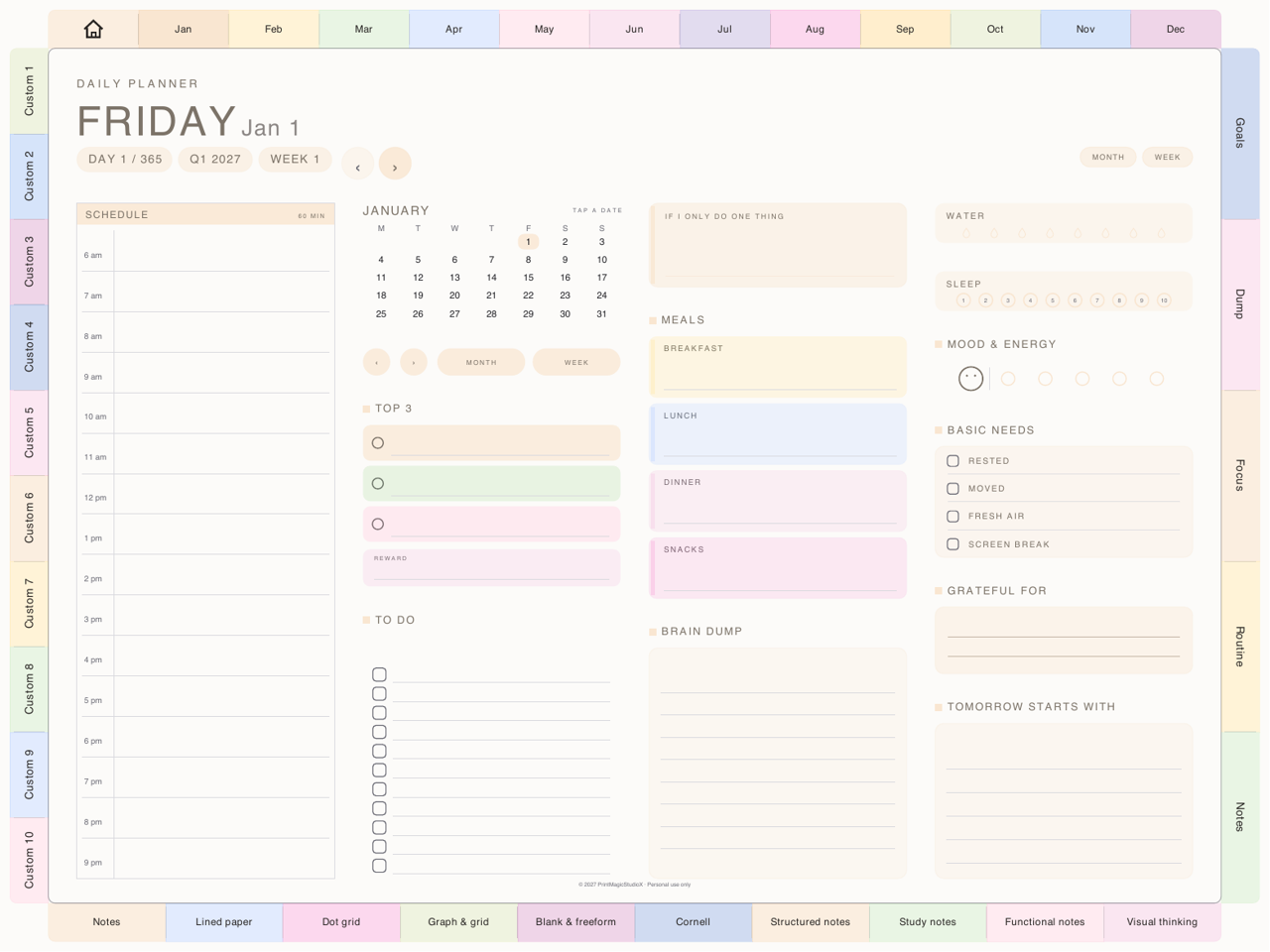
Every edge of the page is navigation. The top rail carries the months, the side rails carry your templates and custom sections, and the foot carries the note papers. The index lists everything in the file, the month buttons open the planner, overview, budget and review pages, and the little house brings you home from anywhere.
the tabs do the walking
Write, move, and duplicate
Tap the pen to write like on paper. Select anything with the Lasso tool to move or duplicate it. Need another copy of a page? Open the sidebar from the top left corner, tap the arrow under the page, choose Copy, then Add Page Before or After wherever you want it.
lasso is your best friend
Not a GoodNotes person?
It is a normal PDF. It works everywhere.
Tap an app for its own quick instructions.
Planner with small round chips beside the titles? Those are Apple Shortcuts: tools, translation, calendar and chat, one tap while you plan. Install them once, here.
Planning guides
More ways to get on with it
- GuideHow digital planner hyperlinks work, and how to tap them in GoodNotesWhy a tap sometimes writes instead of jumping, and the one setting that fixes it.
- GuideHow to use Apple Calendar and Google Calendar with a digital plannerA PDF cannot sync, but it can hand off: Reminders, Google Calendar and Shortcuts from the page.
- GuideMonday or Sunday start planner: which week should you choose?What actually changes on the page, and a simple way to decide.
- GuideHow to choose a student digital planner for the 2026–2027 school yearAcademic or calendar year, the pages that matter, and where your notes should live.
- GuideHow to set up an ADHD digital planner you will keep usingEvery section one tap away, a brain dump before the list, and a page for the low days.
- GuideHow to add digital stickers to GoodNotesPNGs with the Image tool, favourites in Elements, and PDF sheets with the Lasso.
- GuideDigital planner vs paper planner: which one suits you?An honest comparison: cost, carrying, finding pages, backups and the feel of paper.
- GuideZero-based, 50/30/20 or payday: which budget method to useThree ways to give your pay a job, and how to run each one on a page.
- GuideDebt snowball or avalanche: which payoff order to useSmallest balance first, or highest interest rate? What each one costs you.
- GuideUsing a digital planner on a Samsung Galaxy Tab: apps, the S Pen and what worksWhich apps to use on a Galaxy Tab, the S Pen and the links, and what is iPad-only.
- GuideChoosing a digital planner for running a small businessWhat a business planner should hold, what it cannot do, and which one fits your business.
- GuideGoodNotes vs Notability for a digital plannerThe two favourite apps, compared for planning rather than note-taking.
- GuideThe best annotation apps for a digital planner, on iPad, Android and WindowsGoodNotes, Notability, Noteshelf, Xodo and Penly: what each runs on and which follow a planner's links.
happy planning!
Curious what else the studio makes? Shop the digital planners, browse the templates or build a planner of your own.